

Overview
This guide sets up the FortiCloud Web Content Filtering (WCF) integration with OneFirewall.Prerequisites
Install the following on the machine where the agent will run:Step 1: Open the WCF Installation Page
Navigate to the WCF installation page in the OneFirewall portal (refer to your on-premises installation if applicable): https://app.onefirewall.com/install-wcf.htmlStep 2: Select FortiCloud
On the integration page, select FortiCloud from the list of available connectors.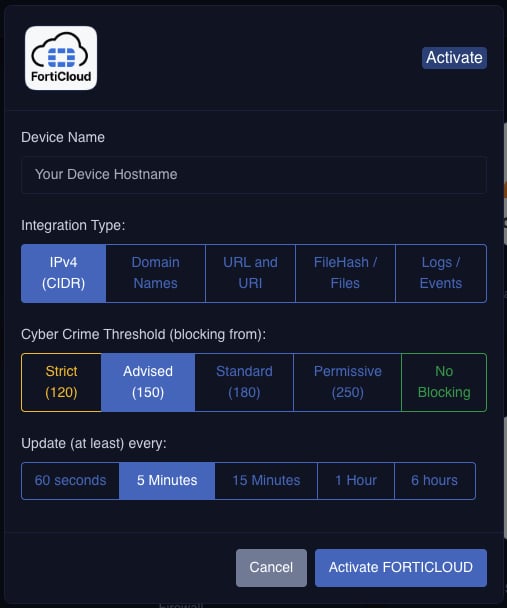
Step 3: Configure the Integration
Fill in the required fields:Setting the update time to 5 minutes is recommended for near-real-time threat intelligence updates.
Step 4: Activate FortiCloud
Once all fields are filled in, click Activate FORTICLOUD. OneFirewall generates a ready-to-usedocker-compose.yml file with the required environment variables pre-populated for your account.
Step 5: Deploy with Docker Compose
The generated docker-compose.yml
docker-compose.yml
The environment variables (e.g.
OFA_JWT_TOKEN, AGID) are automatically filled in by OneFirewall after you click Activate FORTICLOUD.FORTINET_API_KEY and EP_ID are the API key and application ID from your FortiAppSec application, configured from your organization values.Start the agent
Save the generateddocker-compose.yml to a directory on your machine, then run:
Verify the Agent Is Running
Check that the container started correctly:fortiappsec-updater listed with a status of Up.
To view live logs:
Troubleshooting
Container exits immediately after starting
Container exits immediately after starting
Check the logs with
docker logs fortiappsec-updater. A missing or invalid environment variable is the most common cause — make sure you copied the exact docker-compose.yml generated after activation.Cannot pull the Docker image
Cannot pull the Docker image
Make sure Docker is authenticated with the OneFirewall registry. Contact support if you receive a
403 Forbidden or unauthorized error when pulling the image.Threat data is not updating
Threat data is not updating
Verify the container is running and check that the
OFA_JWT_TOKEN is still valid. Tokens may expire — re-activating the integration on the portal will issue a new token.