> ## Documentation Index
> Fetch the complete documentation index at: https://docs.onefirewall.com/llms.txt
> Use this file to discover all available pages before exploring further.
# pfSense Integration Guide
## Overview
This guide explains how to integrate **OneFirewall Alliance (OFA) Threat Feeds** with **pfSense** using **pfBlockerNG** and \*\*External Dynamic Feeds \*\*.
***
## Supported ForcePoint Versions
OneFirewall threat feeds are compatible with pfSense 2.7.0 or later.
***
## Step 1: Generate API Token
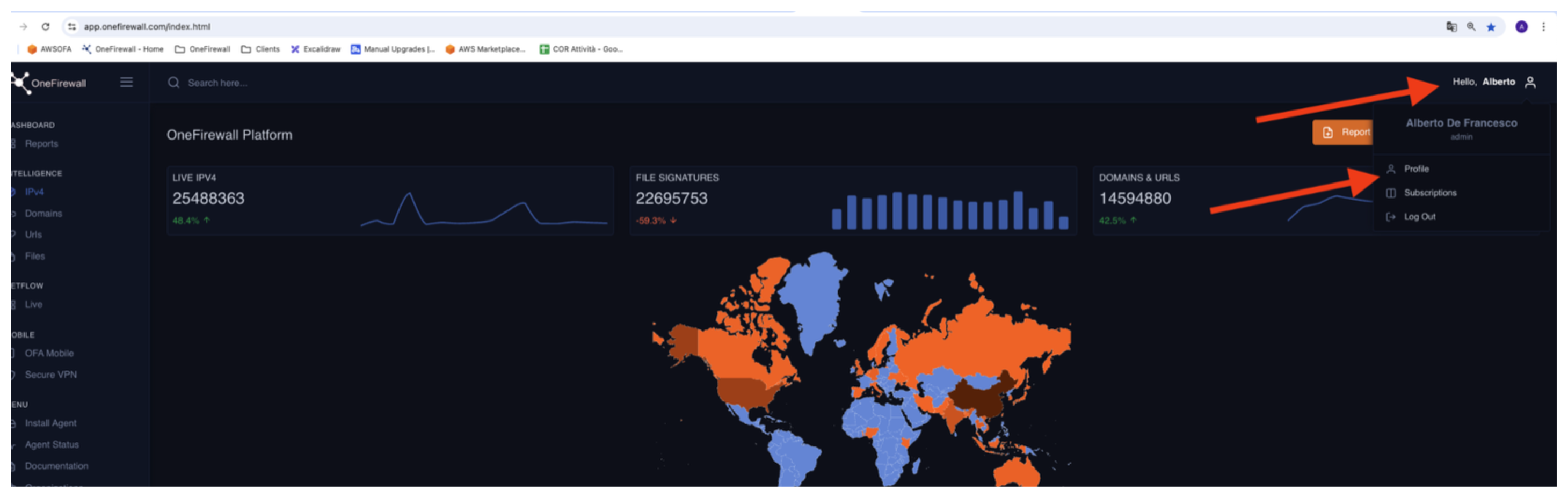
1. Log into your **OneFirewall Alliance** dashboard.
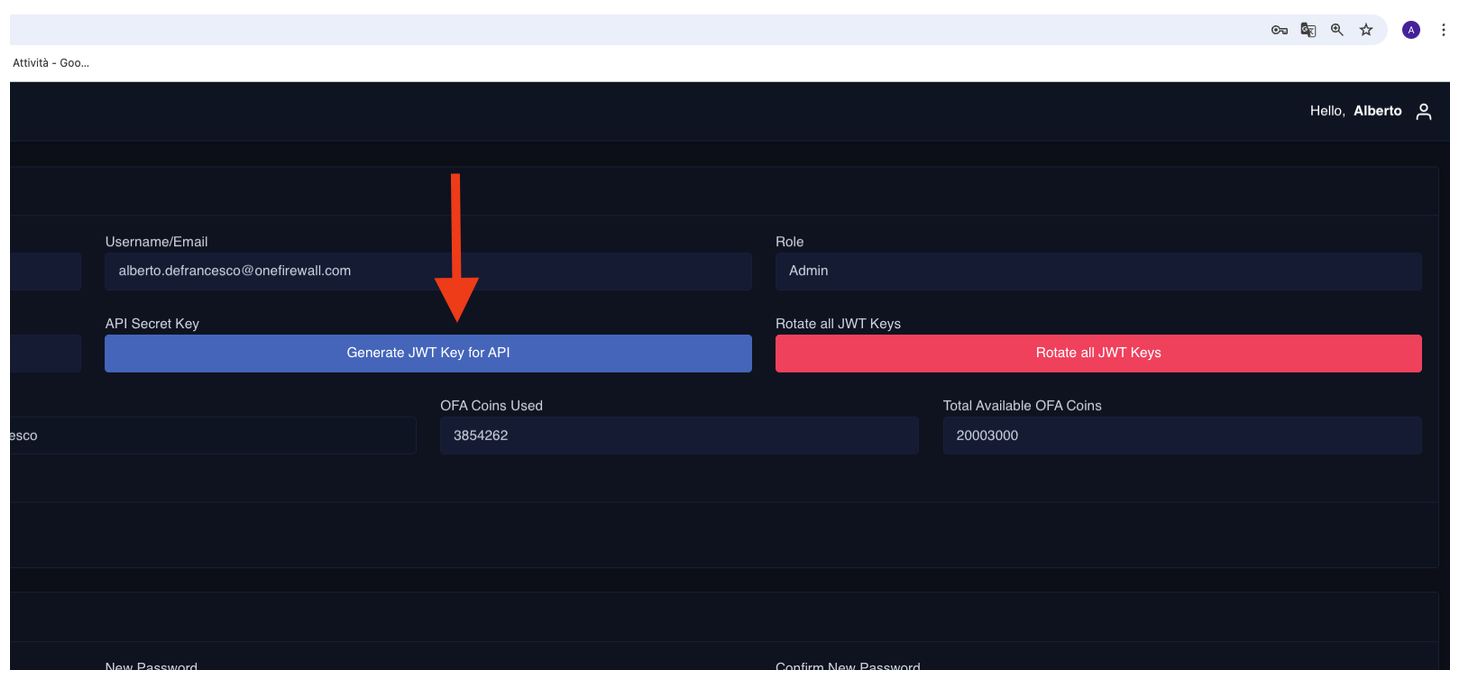
2. Go to the **API Access** section.
3. Click **Generate JWT Token**.
4. Save the token securely — this will be used to authenticate feed requests.
 ***
## Step 2: Generate the agent configuration
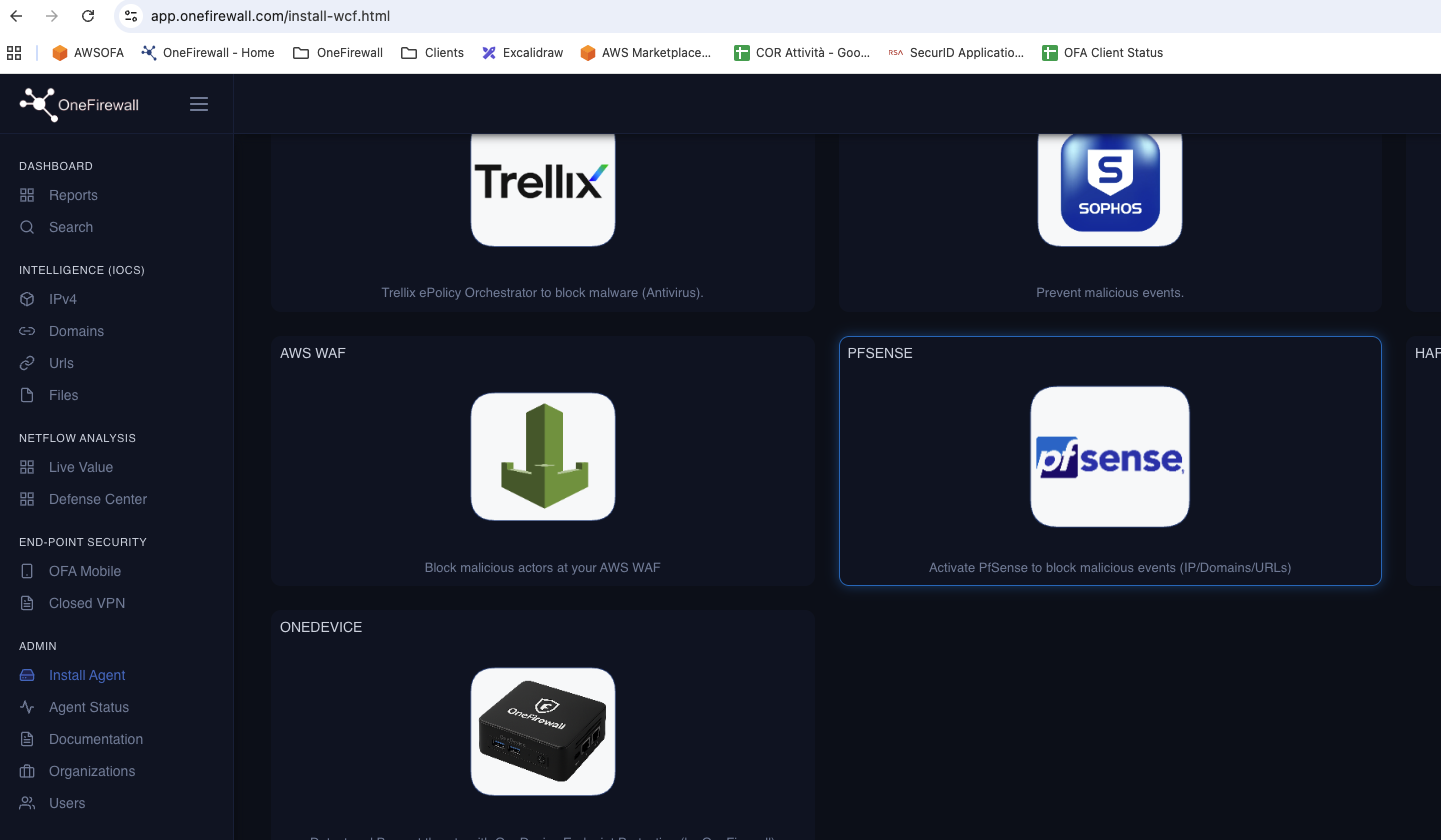
Go to the OneFirewall Alliance Dashboard -> Install Agent, activate pfSense license, and save the configuration setup provided
***
## Step 2: Generate the agent configuration
Go to the OneFirewall Alliance Dashboard -> Install Agent, activate pfSense license, and save the configuration setup provided
 ***
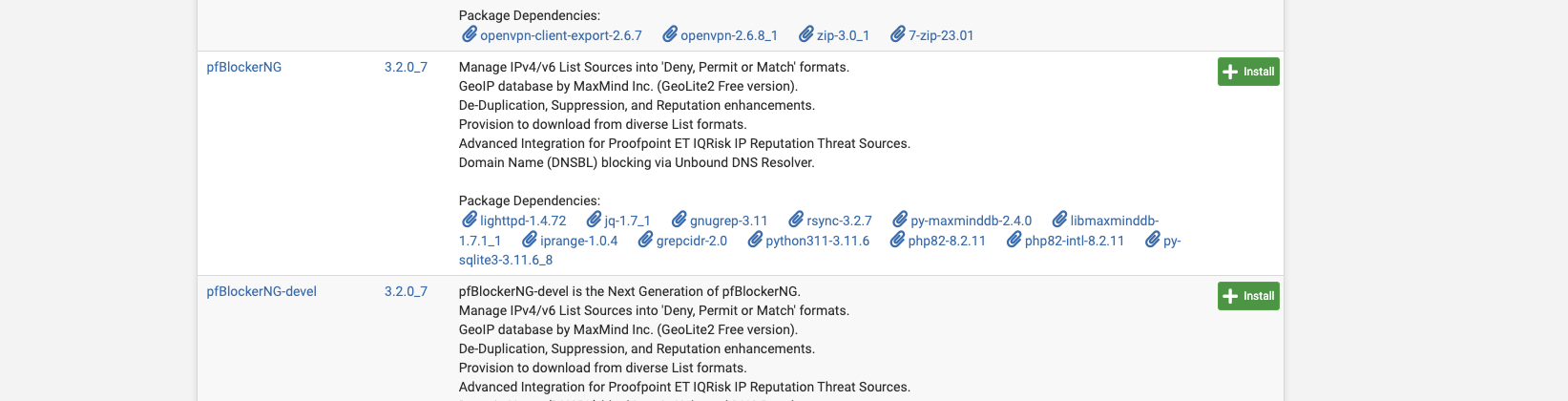
## Step 3: Configure IP Address List and URL List
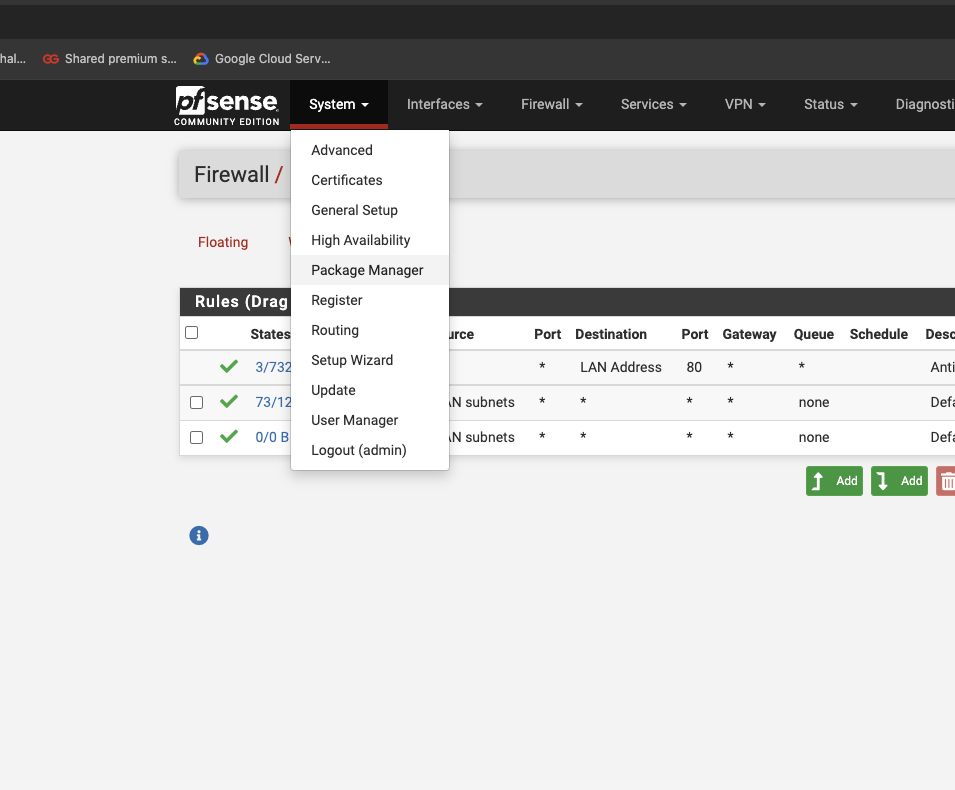
From pfSense Dashboard, go to System -> Package Manager and install pfBlockerNG if not already installed
***
## Step 3: Configure IP Address List and URL List
From pfSense Dashboard, go to System -> Package Manager and install pfBlockerNG if not already installed
 ### Configure the pfBlockerNG
Go to Firewall -> pfBlockerNG and configure the package
### Configure the pfBlockerNG
Go to Firewall -> pfBlockerNG and configure the package
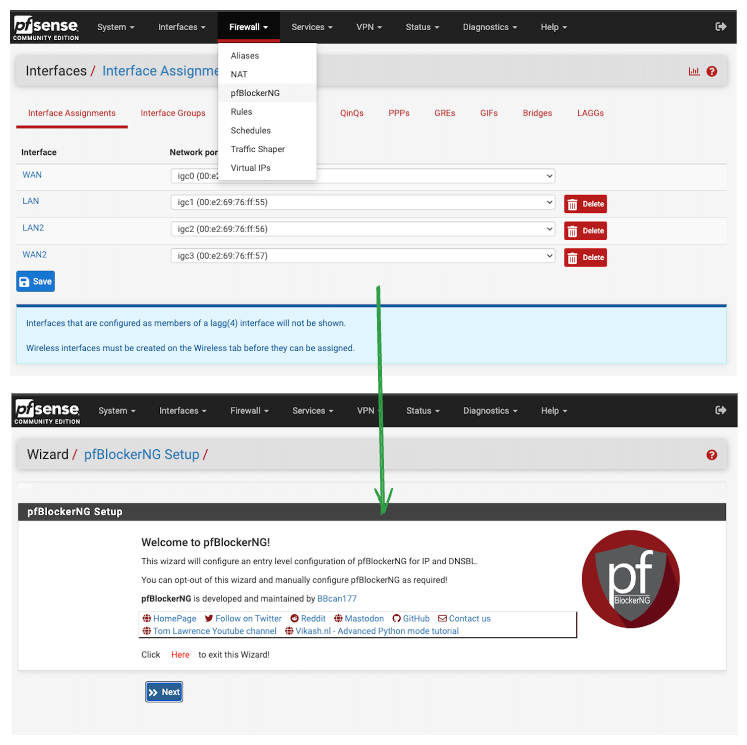 Please, follow all "Next" step until the "Finish" section
### Configure the OneFirewall Threat Feeds
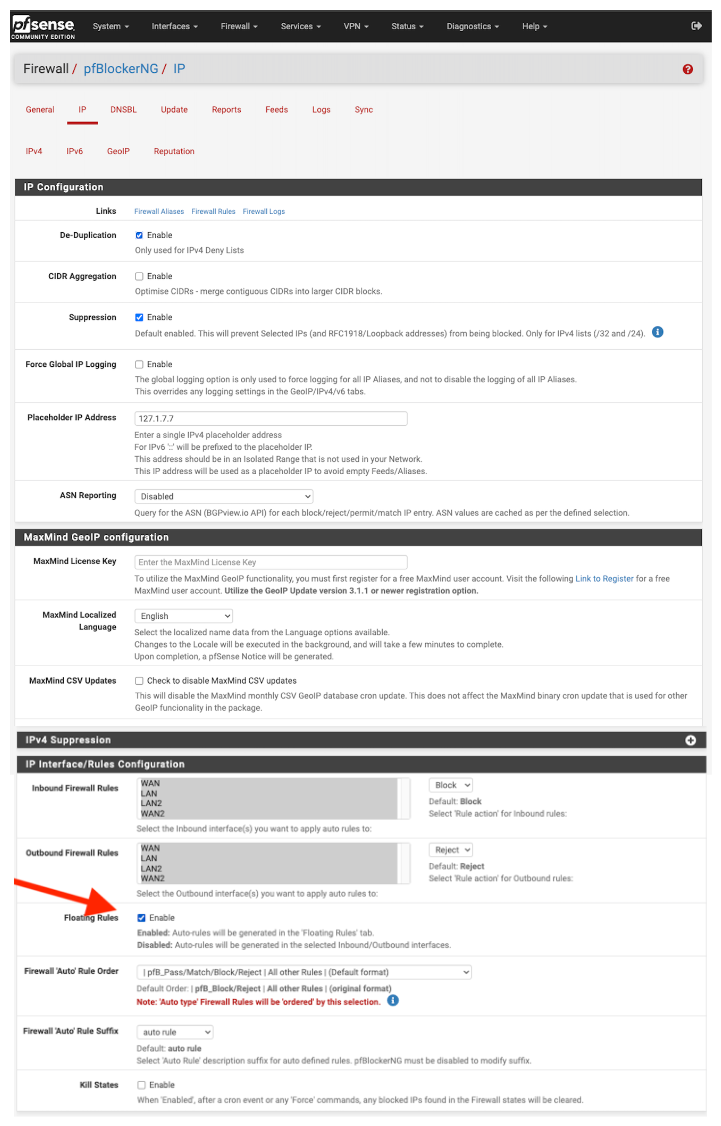
Go to Firewall -> pfBlockerNG -> IP section, and apply following steps:
Please, follow all "Next" step until the "Finish" section
### Configure the OneFirewall Threat Feeds
Go to Firewall -> pfBlockerNG -> IP section, and apply following steps:
 Go to Firewall -> pfBlockerNG -> IP -> IPv4 section, and apply following steps:
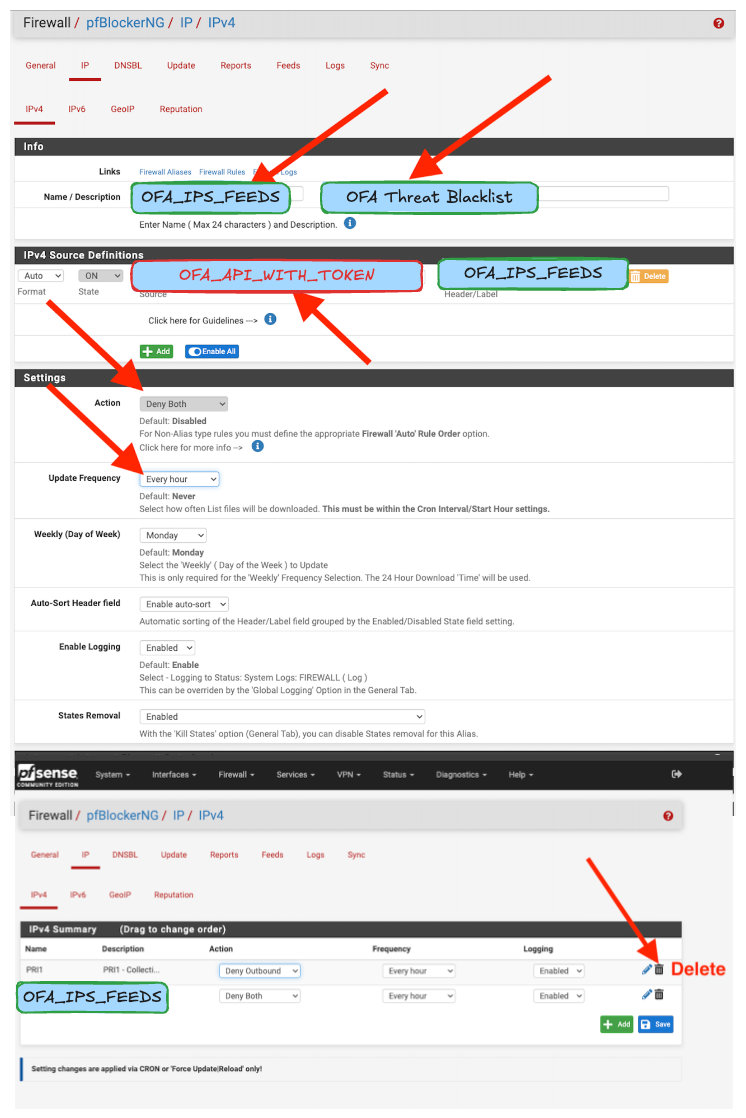 The OFA\_API\_WITH\_TOKEN is the configuration url provided by the OneFirewall Install Agent section.
***
## Notes
* OneFirewall uses **JWT-based Bearer Authentication**.
* Feeds are **auto-refreshable** and optimized for pfSense Integration.
The OFA\_API\_WITH\_TOKEN is the configuration url provided by the OneFirewall Install Agent section.
***
## Notes
* OneFirewall uses **JWT-based Bearer Authentication**.
* Feeds are **auto-refreshable** and optimized for pfSense Integration.