> ## Documentation Index
> Fetch the complete documentation index at: https://docs.onefirewall.com/llms.txt
> Use this file to discover all available pages before exploring further.
# Palo Alto (EDL) Integration Guide
> How to consume a OneFirewall IP feed using External Dynamic Lists (EDL) on Palo Alto Networks firewalls.
## Purpose
This guide explains how to ingest OneFirewall Alliance IP feeds into a Palo Alto firewall using External Dynamic Lists (EDL), with a secure proxy method to support Bearer Token authentication.
***
## Requirements
Ensure you're using **PAN‑OS 10.0+**, which supports HTTPS-based EDLs and certificate profiles.
Palo Alto EDLs do not support Bearer Tokens or custom headers. This guide uses a direct URL with query parameters to fetch the feed.
***
## Step 1: Generate API Token
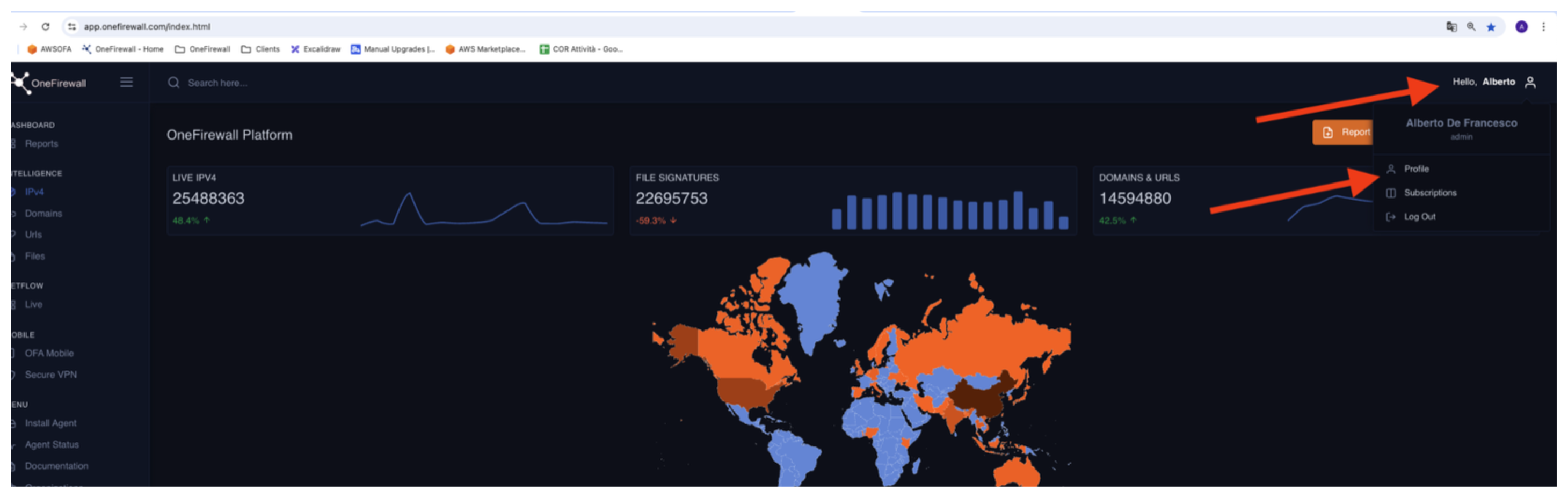
1. Log into your OneFirewall Alliance profile.
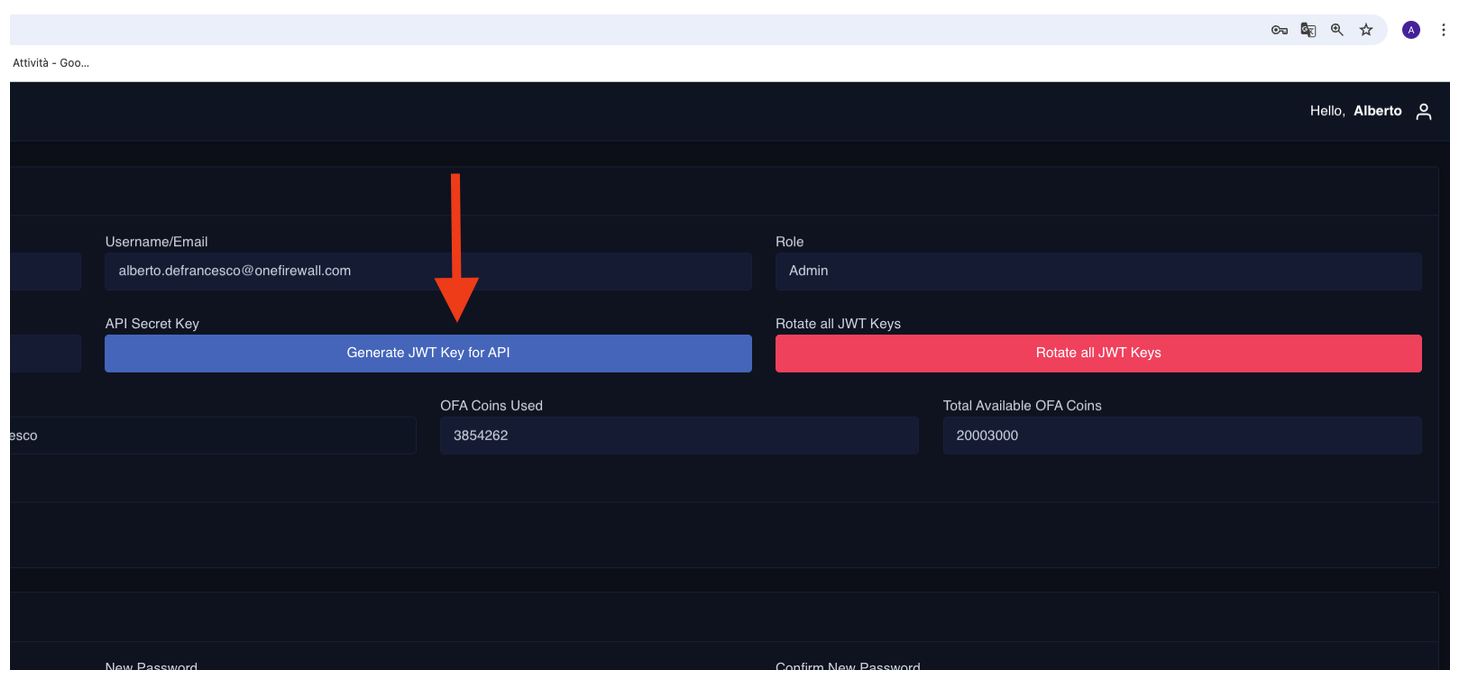
2. Navigate to the **API Access** section.
3. Generate a **JWT token**.
4. Save this token securely — it will be used for authenticating feed requests.
 ***
## 3. Create the External Dynamic List (EDL)
***
## 3. Create the External Dynamic List (EDL)
 1. In the Palo Alto Web UI, go to **Objects → External Dynamic Lists**.
2. Click **Add**.
3. Fill in the fields:
* **Name**: `onefirewall_ipv4_feed`
* **Type**: `IP List`
* **Source**:\
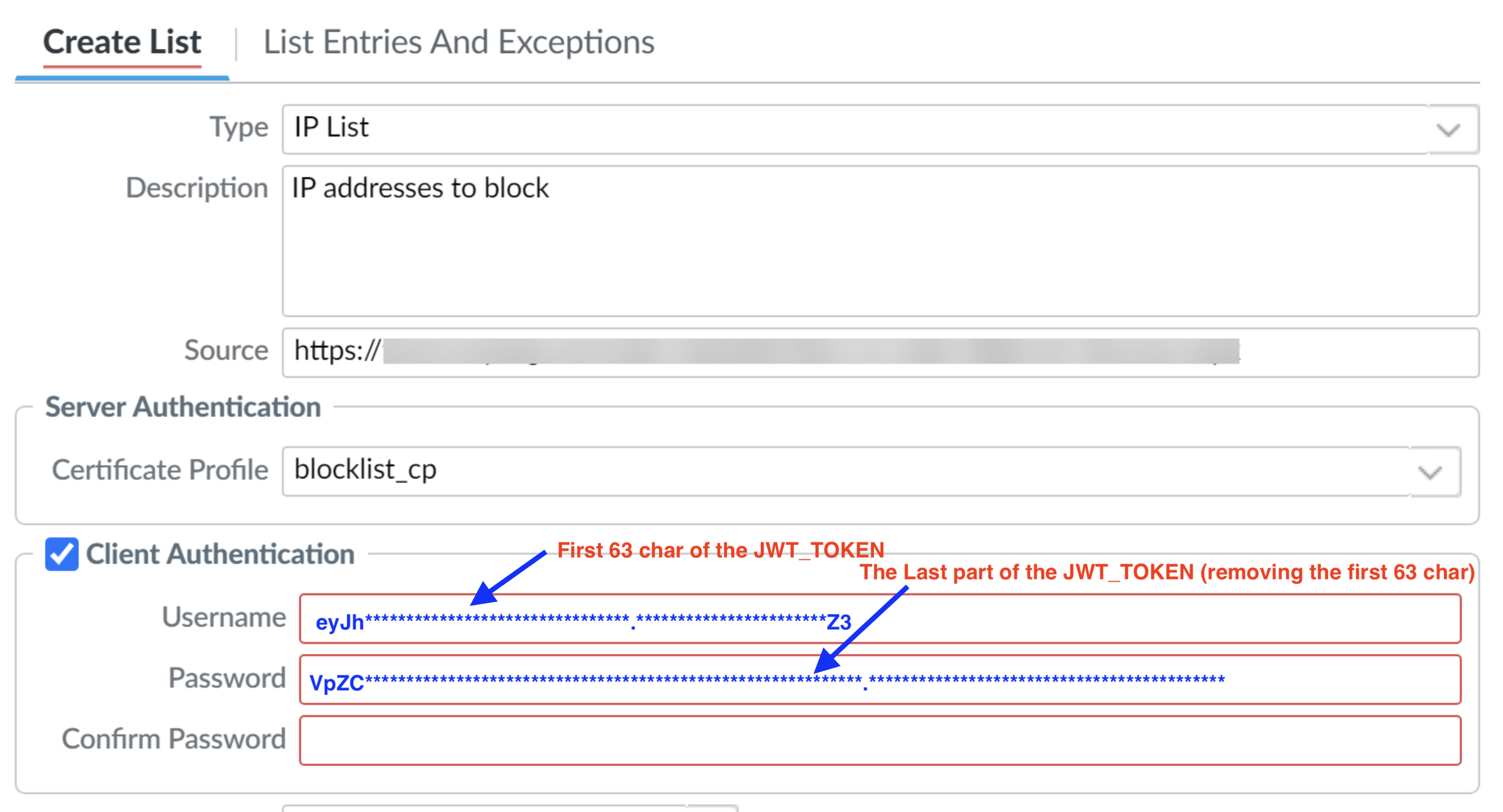
If the Client Authentication appears like in figure, you can also put basic auth in the required section and the source will be like the following:
```vim theme={null}
https://app.onefirewall.com/api/v1/ipv4/200?agid=827c65d86a44&plugin=paloalto"
or
https://YOUR_ON_PREM_INSTALLATION/api/v1/ipv4/200?agid=827c65d86a44&plugin=paloalto"
```
the credentials should be like explained in the figure.
If the Client Authentication is not present, you can pass credentials like in the following section:
```vim theme={null}
https://FIRST_63_CHAR_OF_TOKEN:LAST_PART_OF_TOKEN@app.onefirewall.com(or your local on prem installation)/api/v1/ipv4/200?agid=827c65d86a44&plugin=paloalto"
i.e. https://eyJh********************************.***********************Z3:VpZC************************************************************.*******************************************@app.onefirewall.com/api/v1/ipv4/200?agid=827c65d86a44&plugin=paloalto
```
* **Recurring**: Every 15 minutes (or as needed)
* **Certificate Profile**: *(optional, only needed for HTTPS with custom certs)*
4. Click **OK** and then **Commit** your changes.
If using HTTPS, ensure the server's certificate is valid or import the root CA into the firewall's trusted store.
N.B. you can also see further details to the documentation page:
[Official Palo Alto EDL Configuration Guide](https://docs.paloaltonetworks.com/pan-os/10-2/pan-os-admin/policy/use-an-external-dynamic-list-in-policy/configure-the-firewall-to-access-an-external-dynamic-list)
***
## 4. Apply the EDL in a Security Policy
1. Go to **Policies → Security**.
2. Create a new rule or edit an existing one:
* **Source / Destination Zone**: According to your environment
* **Destination Address**: Add an address object referencing the EDL (`onefirewall_ipv4_feed`)
* **Action**: `Deny` or `Drop`
3. Name and place the rule in the correct policy order.
4. **Commit** the configuration.
***
## 5. Verify EDL Status
You can verify whether the EDL was successfully downloaded using the CLI:
```bash theme={null}
request system external-list show type ip name onefirewall_ipv4_feed
```
1. In the Palo Alto Web UI, go to **Objects → External Dynamic Lists**.
2. Click **Add**.
3. Fill in the fields:
* **Name**: `onefirewall_ipv4_feed`
* **Type**: `IP List`
* **Source**:\
If the Client Authentication appears like in figure, you can also put basic auth in the required section and the source will be like the following:
```vim theme={null}
https://app.onefirewall.com/api/v1/ipv4/200?agid=827c65d86a44&plugin=paloalto"
or
https://YOUR_ON_PREM_INSTALLATION/api/v1/ipv4/200?agid=827c65d86a44&plugin=paloalto"
```
the credentials should be like explained in the figure.
If the Client Authentication is not present, you can pass credentials like in the following section:
```vim theme={null}
https://FIRST_63_CHAR_OF_TOKEN:LAST_PART_OF_TOKEN@app.onefirewall.com(or your local on prem installation)/api/v1/ipv4/200?agid=827c65d86a44&plugin=paloalto"
i.e. https://eyJh********************************.***********************Z3:VpZC************************************************************.*******************************************@app.onefirewall.com/api/v1/ipv4/200?agid=827c65d86a44&plugin=paloalto
```
* **Recurring**: Every 15 minutes (or as needed)
* **Certificate Profile**: *(optional, only needed for HTTPS with custom certs)*
4. Click **OK** and then **Commit** your changes.
If using HTTPS, ensure the server's certificate is valid or import the root CA into the firewall's trusted store.
N.B. you can also see further details to the documentation page:
[Official Palo Alto EDL Configuration Guide](https://docs.paloaltonetworks.com/pan-os/10-2/pan-os-admin/policy/use-an-external-dynamic-list-in-policy/configure-the-firewall-to-access-an-external-dynamic-list)
***
## 4. Apply the EDL in a Security Policy
1. Go to **Policies → Security**.
2. Create a new rule or edit an existing one:
* **Source / Destination Zone**: According to your environment
* **Destination Address**: Add an address object referencing the EDL (`onefirewall_ipv4_feed`)
* **Action**: `Deny` or `Drop`
3. Name and place the rule in the correct policy order.
4. **Commit** the configuration.
***
## 5. Verify EDL Status
You can verify whether the EDL was successfully downloaded using the CLI:
```bash theme={null}
request system external-list show type ip name onefirewall_ipv4_feed
```