> ## Documentation Index
> Fetch the complete documentation index at: https://docs.onefirewall.com/llms.txt
> Use this file to discover all available pages before exploring further.
# WCF Installation
> How to install and run World Crime Feeds (WCF) by OneFirewall
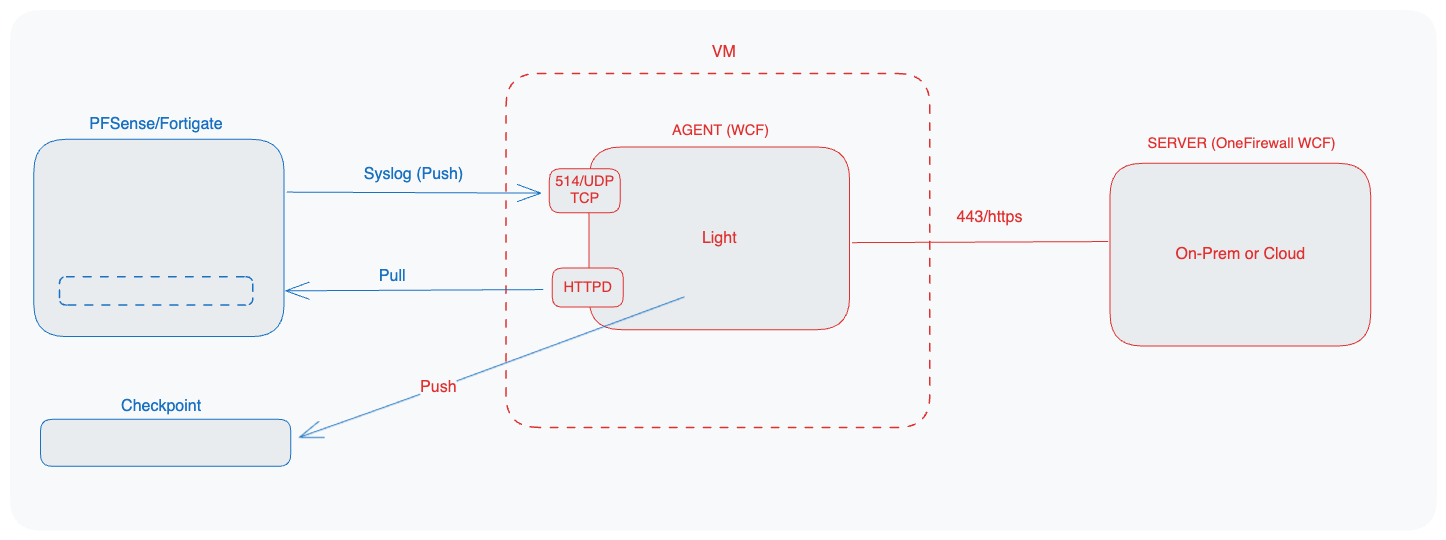
The **WCF Agent** integrates with the OneFirewall Platform to:
* Ingest security events from SIEMs (via syslog)
* Serve threat feeds to firewalls (FortiGate, pfSense, etc.)
* Automate blocking of malicious activity
This guide shows you how to deploy the WCF Agent on your own infrastructure.
***
 ## 1. Prerequisites
### 1.1 Virtual Machine Specifications
* **RAM:** 8 GB (minimum 4 GB)
* **vCPU:** 4 cores (minimum 2 cores)
* **Disk:** 50 GB (minimum 20 GB)
### 1.2 Network Requirements
| Direction | Protocol / Port | Purpose |
| --------- | --------------------- | ------------------------------------------- |
| Inbound | UDP 514 | Receive syslog events from your SIEM |
| Inbound | TCP 443 (HTTPS) | Serve threat feeds to firewalls |
| Inbound | TCP 8085 (HTTP) | Serve threat feeds to firewalls |
| Outbound | TCP 443 → OneFirewall | Sync config & retrieve instructions |
| Outbound | TCP 443 → Firewalls | Push automated-blocking commands (optional) |
***
## 2. Install Docker & Docker Compose
```bash theme={null}
# On Debian/Ubuntu
sudo apt update
sudo apt install -y docker.io
sudo systemctl enable --now docker
# Install Docker Compose
sudo curl -L "https://github.com/docker/compose/releases/download/$(curl -s https://api.github.com/repos/docker/compose/releases/latest | jq -r '.tag_name')/docker-compose-$(uname -s)-$(uname -m)" \
-o /usr/local/bin/docker-compose
sudo chmod +x /usr/local/bin/docker-compose
```
## 3. Prepare Your Deployment Directory
```
mkdir -p ~/wcf-agent
cd ~/wcf-agent
```
1. Download the WCF Agent Docker image into this folder.
2. Obtain your config.json from OneFirewall’s Install Agent page.
3. Place config.json in \~/wcf-agent/onefirewall/config.
## 4. Create docker-compose.yml
```yaml theme={null}
version: '3'
services:
onefirewall-wcf-agent:
image: registry.onefirewall.com/wcf-agent:v4
restart: always
ports:
- 8085:8080
volumes:
- "/tmp/log/:/var/log/:ro"
- "./onefirewall/config:/opt/onefirewall/WCF-Agent-latest/config/:rw"
- "./onefirewall/db:/opt/onefirewall/WCF-Agent-latest/db/:rw"
command: >
bash -x init.sh
```
Contact OneFirewall support team with access to download WCF Agent binary image
## 5. Launch the Agent
```
docker compose up -d
docker-compose logs -f onefirewall-wcf-agent
```
1. `docker compose up -d` runs containers in the background.
2. `docker compose logs -f` streams the agent’s output for troubleshooting.
## 6. Verify Operation
1. Visit `https://app.onefirewall.com/agent-status.html` to see the Agent is working and blocking malicious connections
2. Visit `https://app.onefirewall.com/live.html` to see the traffic captured in real time
## 1. Prerequisites
### 1.1 Virtual Machine Specifications
* **RAM:** 8 GB (minimum 4 GB)
* **vCPU:** 4 cores (minimum 2 cores)
* **Disk:** 50 GB (minimum 20 GB)
### 1.2 Network Requirements
| Direction | Protocol / Port | Purpose |
| --------- | --------------------- | ------------------------------------------- |
| Inbound | UDP 514 | Receive syslog events from your SIEM |
| Inbound | TCP 443 (HTTPS) | Serve threat feeds to firewalls |
| Inbound | TCP 8085 (HTTP) | Serve threat feeds to firewalls |
| Outbound | TCP 443 → OneFirewall | Sync config & retrieve instructions |
| Outbound | TCP 443 → Firewalls | Push automated-blocking commands (optional) |
***
## 2. Install Docker & Docker Compose
```bash theme={null}
# On Debian/Ubuntu
sudo apt update
sudo apt install -y docker.io
sudo systemctl enable --now docker
# Install Docker Compose
sudo curl -L "https://github.com/docker/compose/releases/download/$(curl -s https://api.github.com/repos/docker/compose/releases/latest | jq -r '.tag_name')/docker-compose-$(uname -s)-$(uname -m)" \
-o /usr/local/bin/docker-compose
sudo chmod +x /usr/local/bin/docker-compose
```
## 3. Prepare Your Deployment Directory
```
mkdir -p ~/wcf-agent
cd ~/wcf-agent
```
1. Download the WCF Agent Docker image into this folder.
2. Obtain your config.json from OneFirewall’s Install Agent page.
3. Place config.json in \~/wcf-agent/onefirewall/config.
## 4. Create docker-compose.yml
```yaml theme={null}
version: '3'
services:
onefirewall-wcf-agent:
image: registry.onefirewall.com/wcf-agent:v4
restart: always
ports:
- 8085:8080
volumes:
- "/tmp/log/:/var/log/:ro"
- "./onefirewall/config:/opt/onefirewall/WCF-Agent-latest/config/:rw"
- "./onefirewall/db:/opt/onefirewall/WCF-Agent-latest/db/:rw"
command: >
bash -x init.sh
```
Contact OneFirewall support team with access to download WCF Agent binary image
## 5. Launch the Agent
```
docker compose up -d
docker-compose logs -f onefirewall-wcf-agent
```
1. `docker compose up -d` runs containers in the background.
2. `docker compose logs -f` streams the agent’s output for troubleshooting.
## 6. Verify Operation
1. Visit `https://app.onefirewall.com/agent-status.html` to see the Agent is working and blocking malicious connections
2. Visit `https://app.onefirewall.com/live.html` to see the traffic captured in real time