> ## Documentation Index
> Fetch the complete documentation index at: https://docs.onefirewall.com/llms.txt
> Use this file to discover all available pages before exploring further.
# Virtual Private Server
> Technical Implementation
# pfSense OpenVPN Client setup
To configure OpenVPN, you need to:
* get the file openvpn-clientX.vpn (Please, ask to [support@onefirewall.com](mailto:support@onefirewall.com) for that).
* Open the openvpn-clientX.ovpn with an editor text.
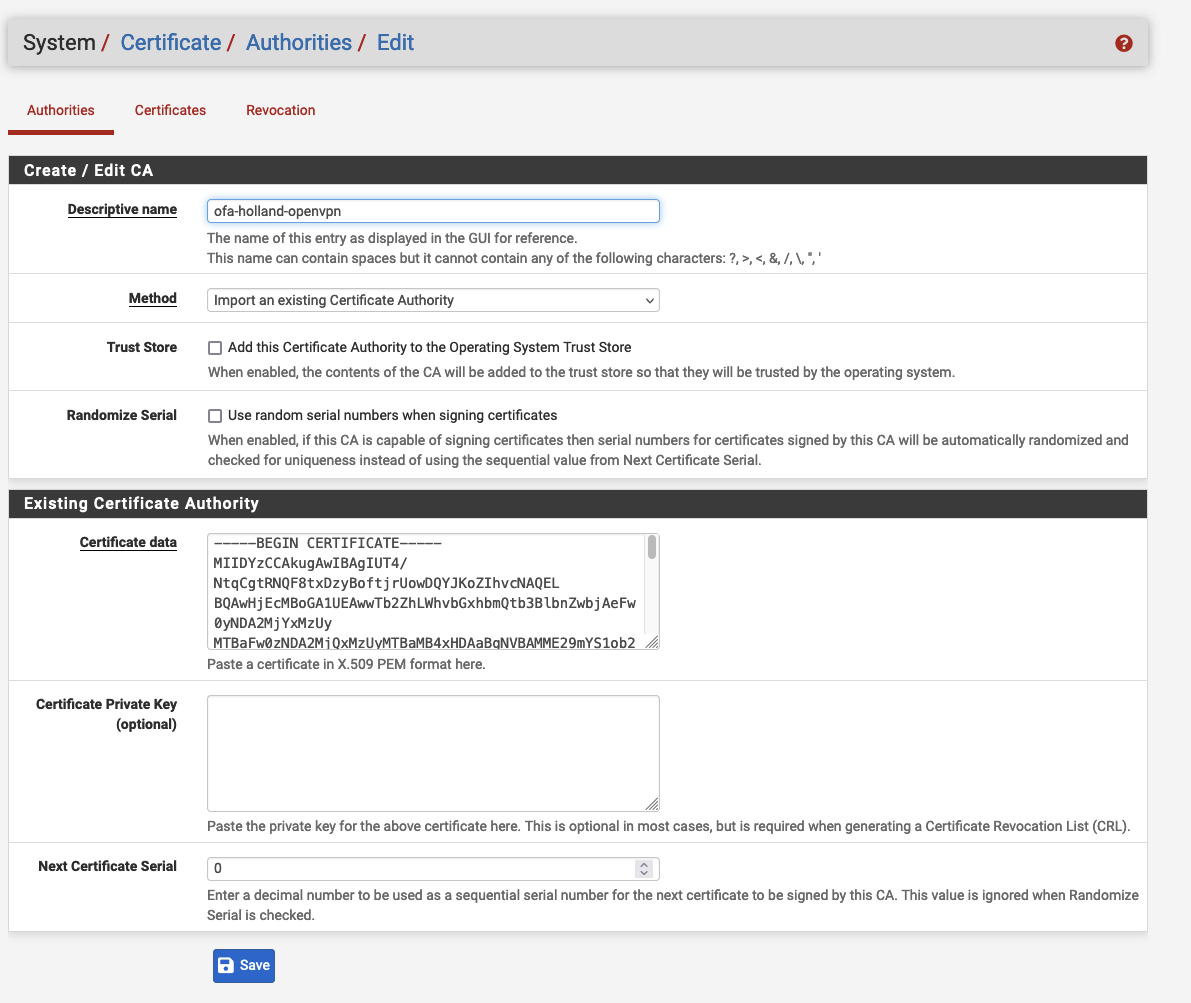
* Go to the pfSense Webconfigurator at System / Certificate / Authorities and
* add a new authority CA as in figure 1.1 by importing that from the openvpn client
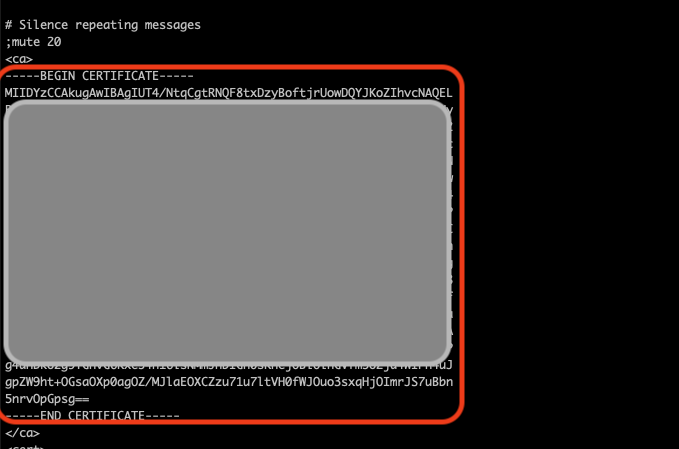
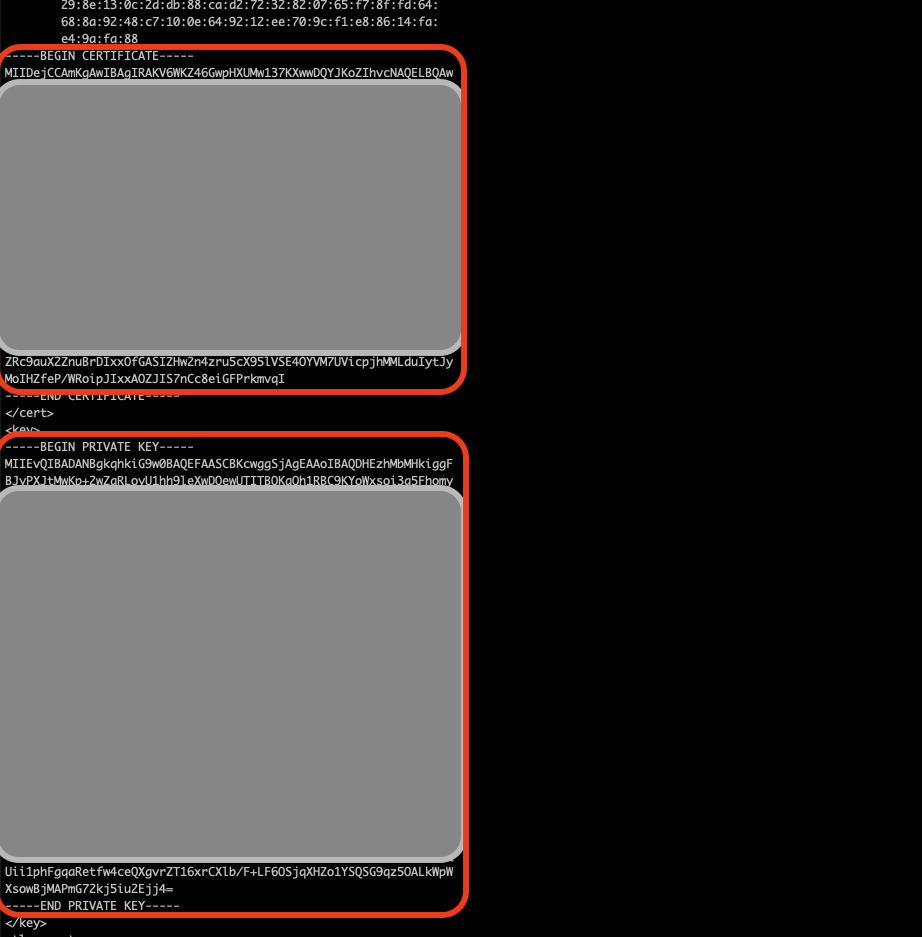
* Get the CA certificate from `openvpn-clientX.ovpn`, copy all text content between `` and ` without `\`
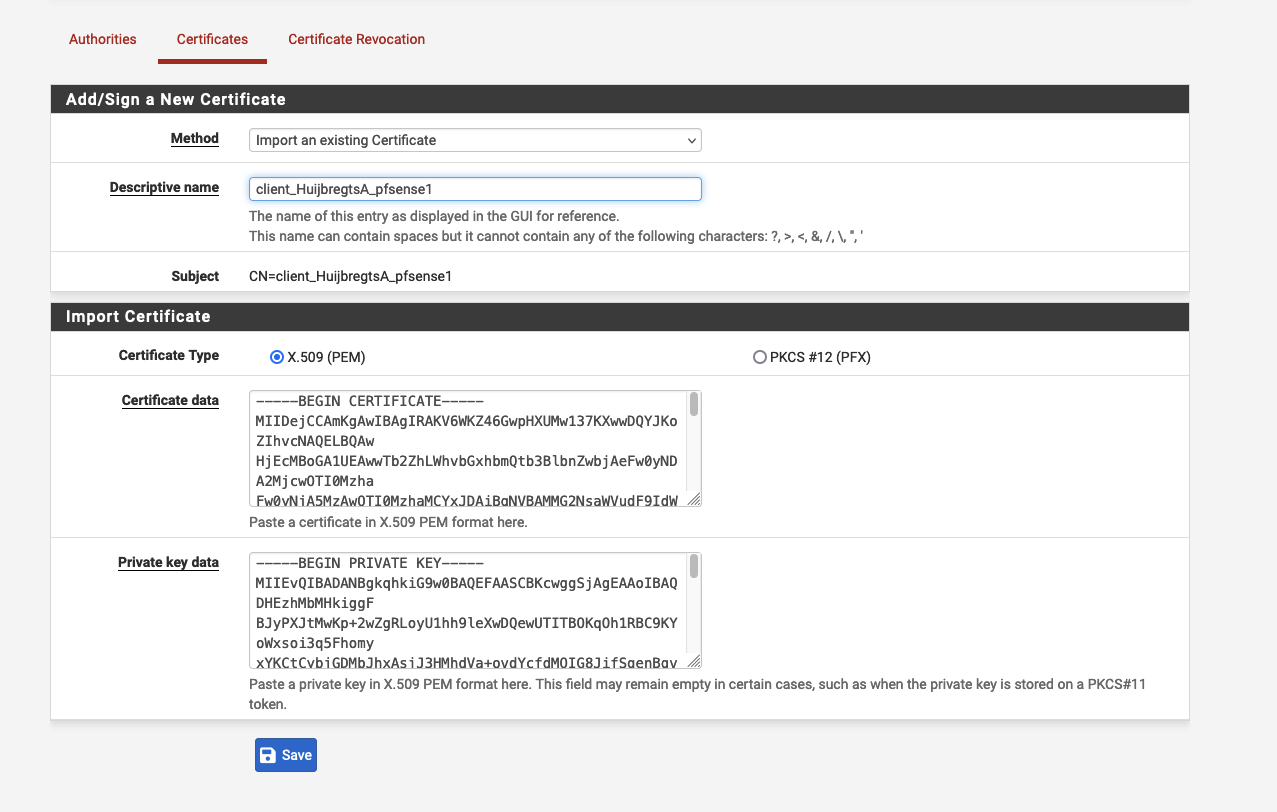
 Install the certificate and private key of the client to connect with the openvpn server.
Get the value from **openvpn-clientX** file, for the certificate and private key, and import
the certificate in the certificates section of System / Certificate / Certificates section as
YourOrgOpenVPN. Do steps like in fig. above.
Install the certificate and private key of the client to connect with the openvpn server.
Get the value from **openvpn-clientX** file, for the certificate and private key, and import
the certificate in the certificates section of System / Certificate / Certificates section as
YourOrgOpenVPN. Do steps like in fig. above.
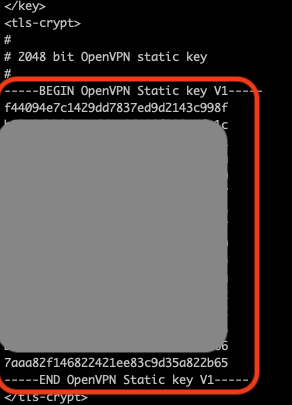
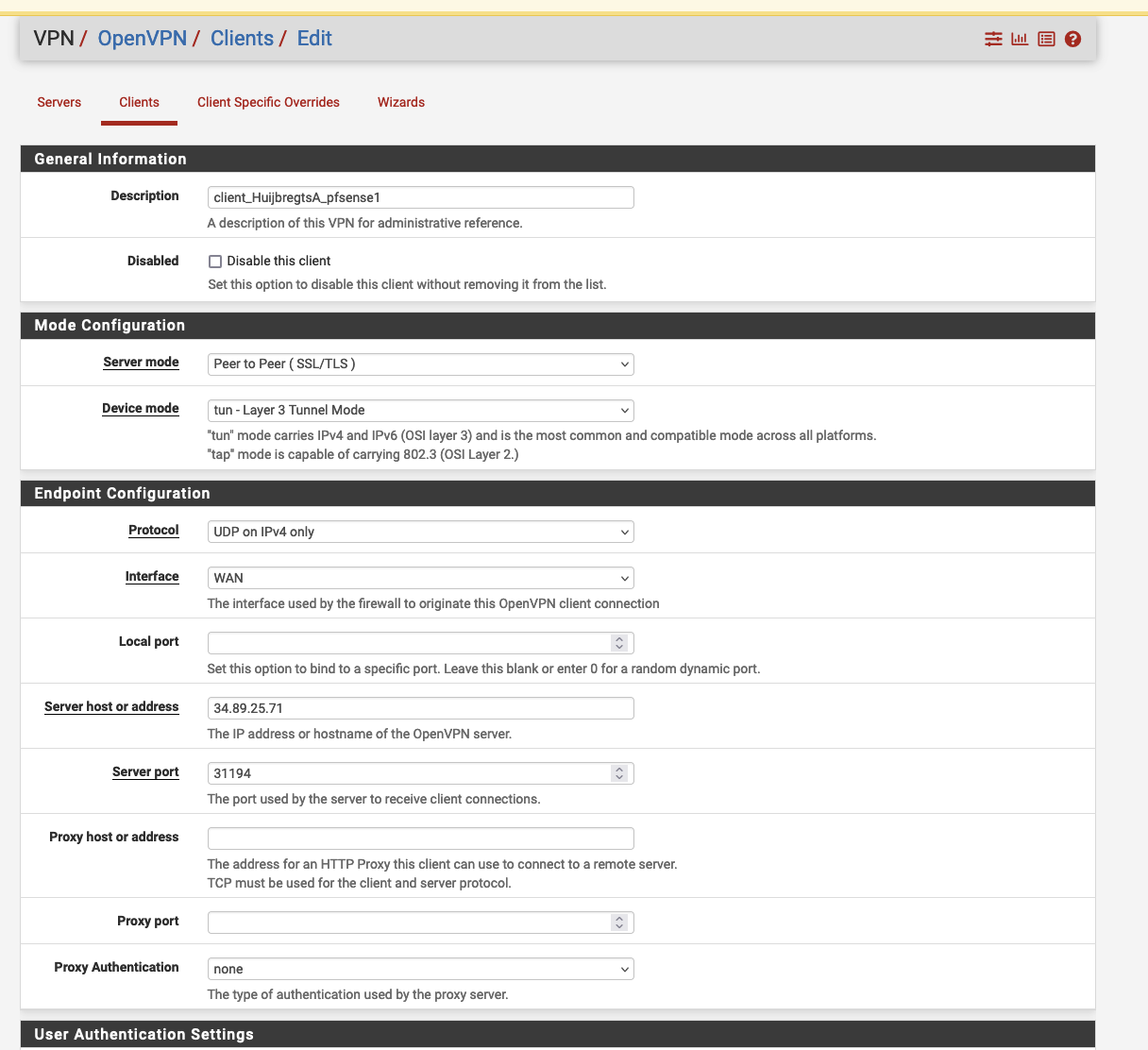
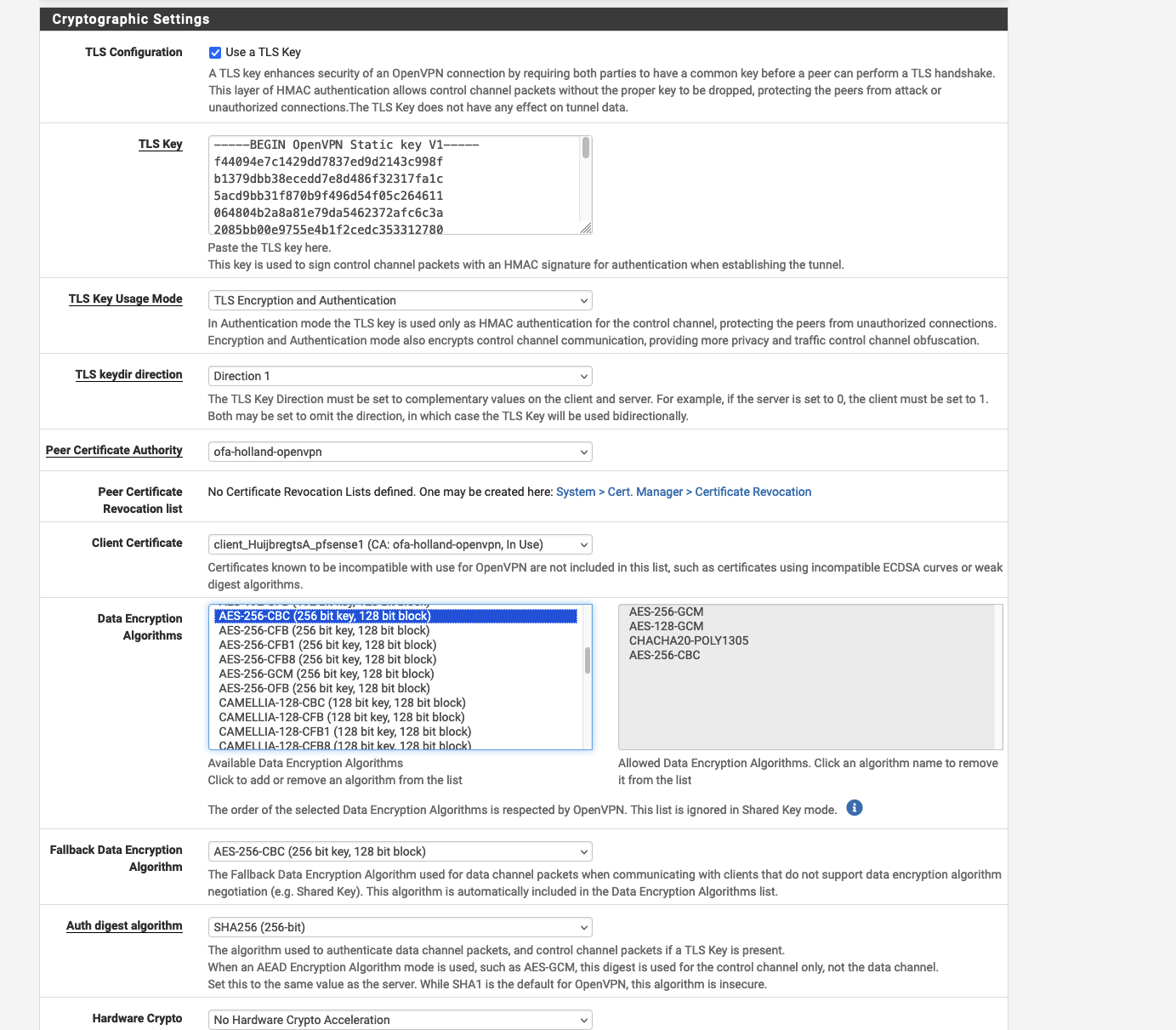
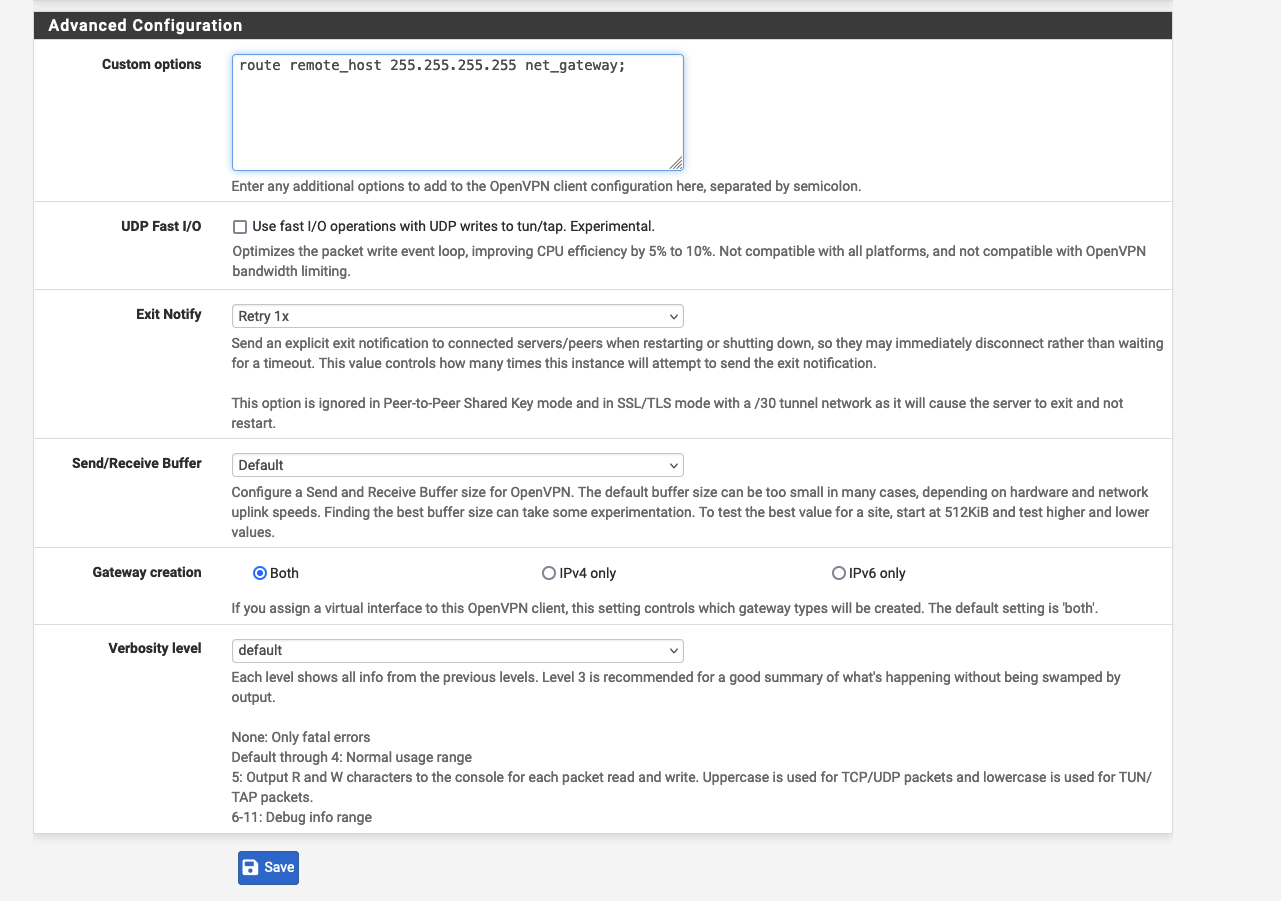
 Go to VPN / OpenVPN / Client and setup as in the Fig above by getting the tls cert from
openvpn-clientX.ovpn and save the configuration.
Go to VPN / OpenVPN / Client and setup as in the Fig above by getting the tls cert from
openvpn-clientX.ovpn and save the configuration.
 At the end, in Status / OpenVPN you should find the client vpn active:
 # PFBlockerNG - OneFirewall Blacklist setup
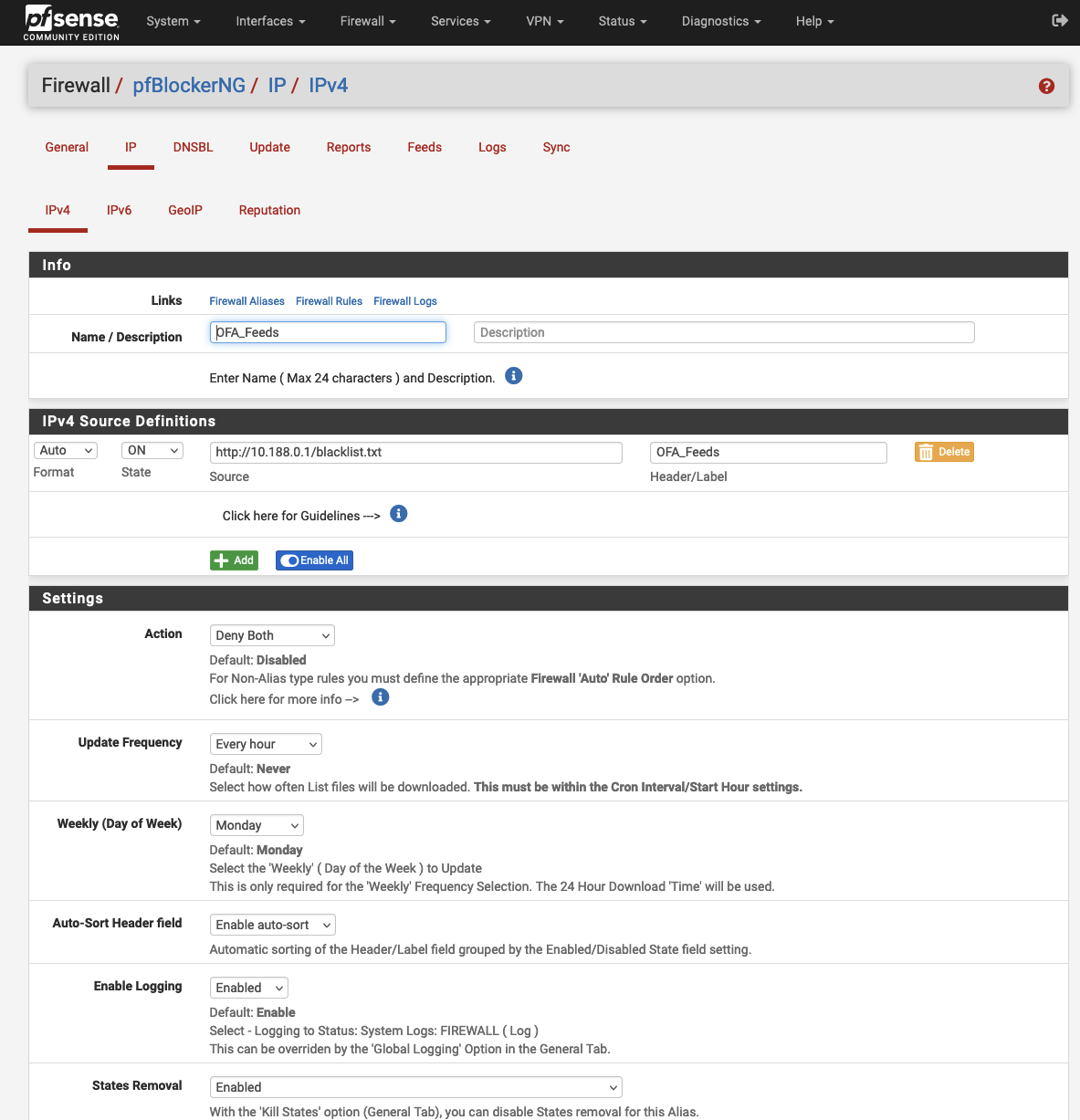
To setup the pfBlockerNG, you can setup ipv4 blacklist like in figure below
# PFBlockerNG - OneFirewall Blacklist setup
To setup the pfBlockerNG, you can setup ipv4 blacklist like in figure below
 # Setup System Logs (syslogs) - Settings
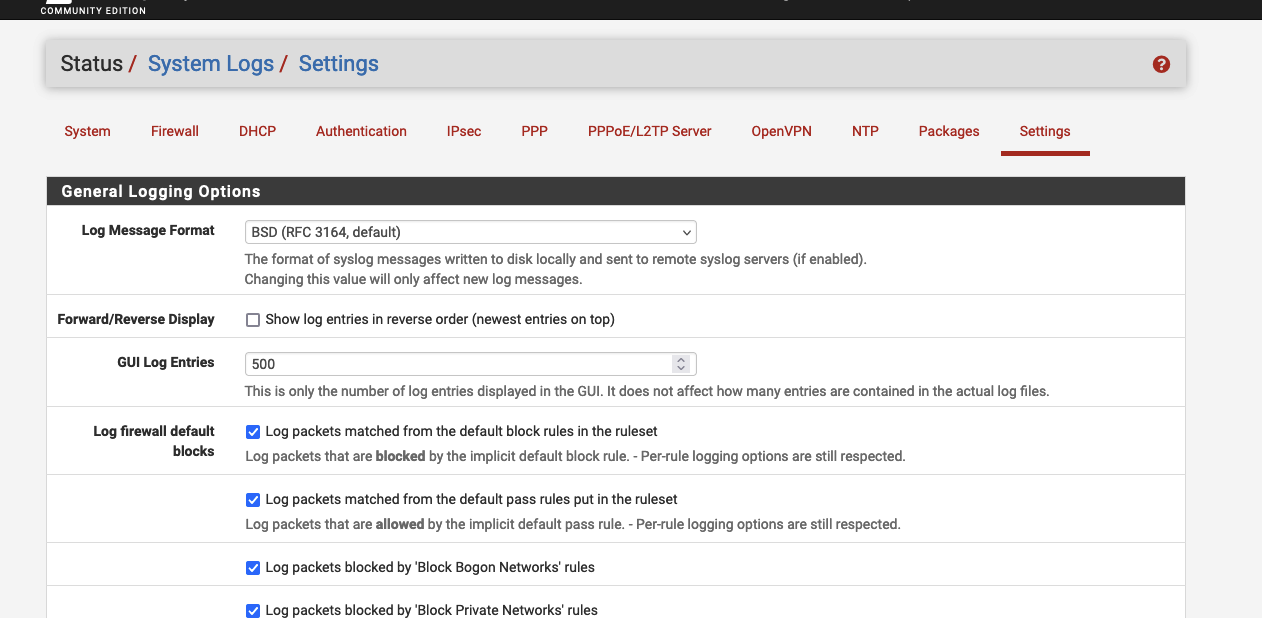
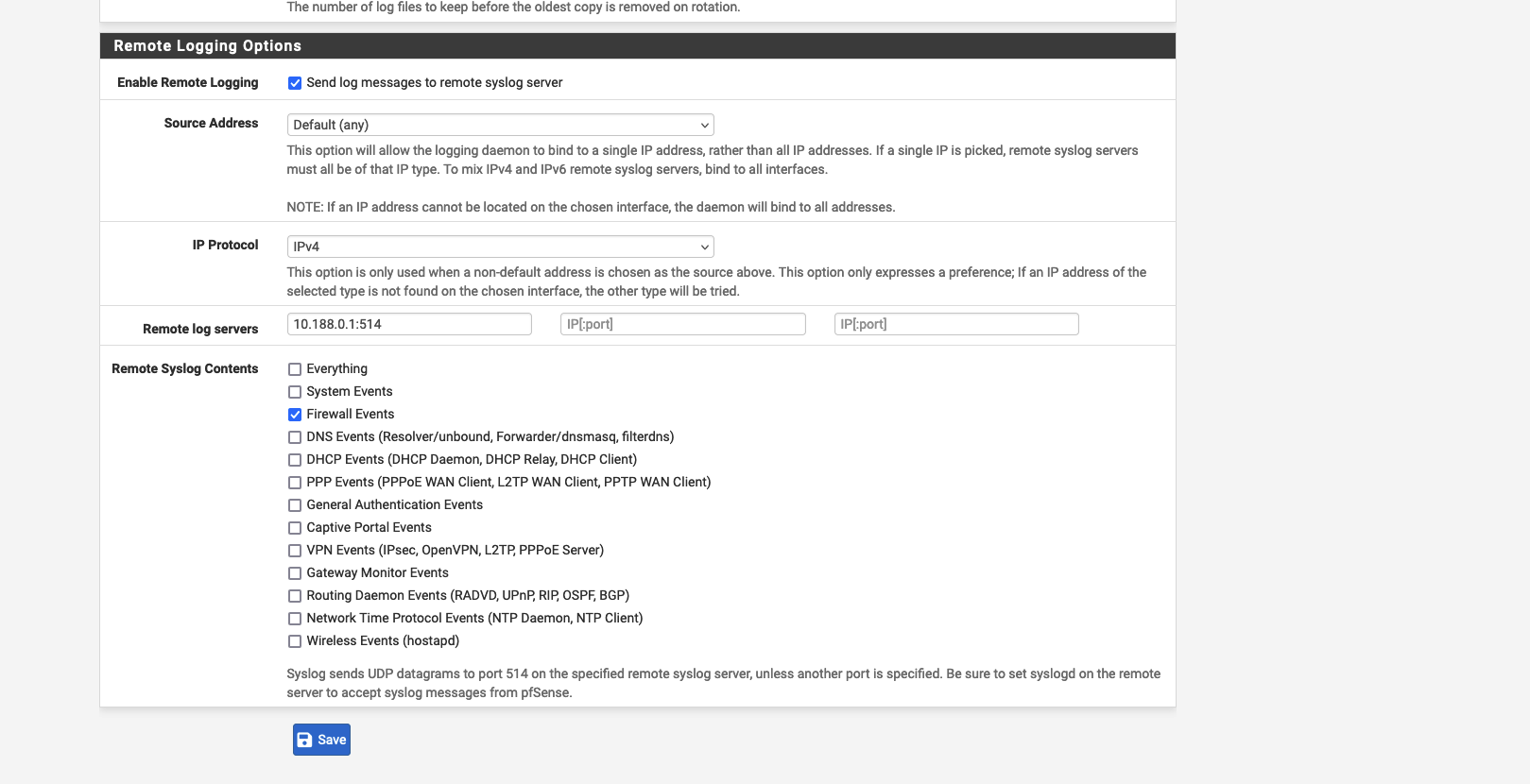
To setup the mirroring of the system logs, you can follow the guidelines like in figure 3.1
from the Status / System Logs / Settings:
# Setup System Logs (syslogs) - Settings
To setup the mirroring of the system logs, you can follow the guidelines like in figure 3.1
from the Status / System Logs / Settings: