> ## Documentation Index
> Fetch the complete documentation index at: https://docs.onefirewall.com/llms.txt
> Use this file to discover all available pages before exploring further.
# ONE-F3D-Agent Installation
> How to install and run the World Crime Feed-Defend-Detect (F3D) Agent - by OneFirewall (one-f3d-agent)
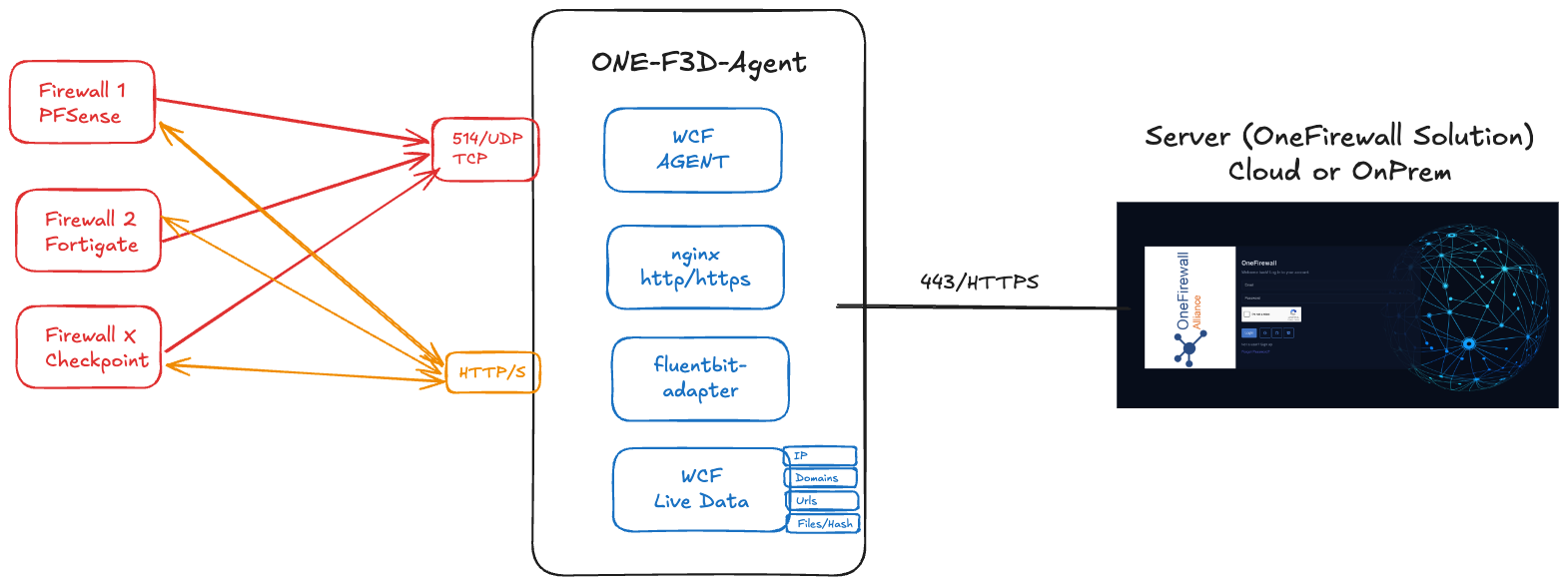
The **World Crime Feed-Defend-Detect Agent** integrates with the OneFirewall Platform to:
* Ingest security events from SIEMs (via syslog)
* Serve threat feeds to firewalls (FortiGate, pfSense, etc.)
* Serve threat feeds indicators for Ipv4, Domains, urls and files/hashes as file lists txt.
* Automate blocking of malicious activity
This guide shows you how to deploy the ONE-F3D-Agent on your own infrastructure.
***
 ## 1. Prerequisites
### 1.1 Virtual Machine Specifications
* **RAM:** 8 GB (minimum 4 GB)
* **vCPU:** 4 cores (minimum 2 cores)
* **Disk:** 50 GB (minimum 20 GB)
### 1.2 Network Requirements
| Direction | Protocol / Port | Purpose |
| --------- | --------------------- | ------------------------------------------- |
| Inbound | UDP 514 | Receive syslog events from your SIEM |
| Inbound | TCP 443 (HTTPS) | Serve threat feeds to firewalls |
| Inbound | TCP 8080 (HTTP) | Serve threat feeds to firewalls without SSL |
| Outbound | TCP 443 → OneFirewall | Sync config & retrieve instructions |
| Outbound | TCP 443 → Firewalls | Push automated-blocking commands (optional) |
***
## 2. Install Docker & Docker Compose
```bash theme={null}
# On Debian/Ubuntu
sudo apt update
sudo apt install -y docker.io
sudo systemctl enable --now docker
# Install Docker Compose
sudo curl -L "https://github.com/docker/compose/releases/download/$(curl -s https://api.github.com/repos/docker/compose/releases/latest | jq -r '.tag_name')/docker-compose-$(uname -s)-$(uname -m)" \
-o /usr/local/bin/docker-compose
sudo chmod +x /usr/local/bin/docker-compose
```
## 3. Prepare Your Deployment Directory
```bash theme={null}
mkdir -p ~/one-f3d-agent
cd ~/one-f3d-agent
```
1. Download the docker-compose.yml file for the ONE-F3D-Agent from [https://app.onefirewall.com/install-agent.html](https://app.onefirewall.com/install-agent.html), or from your on-premises installation (e.g., https\://LOCAL\_IP/install-agent.html).
2. The docker-compose.yml file includes environment variables required for the ONE-F3D-Agent to interact with its components. Make sure the FIREWALL\_PARSER variable (e.g., FIREWALL\_PARSER: "fortigate\_parser") matches the firewall log type sent by your SIEM.
3. Save the docker-compose.yml file to the \~/one-f3d-agent directory.
## 4. Example docker-compose.yml
```yaml theme={null}
version: "3.9"
services:
nginx:
image: nginx
restart: always
volumes:
- ./onefirewall/db/local:/usr/share/nginx/html/api
environment:
NGINX_PORT: 80
ports:
- 8080:80
command: |
bash -c '
cat < /etc/nginx/conf.d/nginx-test.conf
server {
listen 80;
listen [::]:80 ;
server_name ofa-local.onefirewall.com;
location / {
root /usr/share/nginx/html;
index index.html index.htm;
}
error_page 500 502 503 504 /50x.html;
location = /50x.html {
root /usr/share/nginx/html;
}
}
EOF
nginx -g "daemon off;"'
onefirewall-wcf-agent:
image: registry.onefirewall.com/wcf-agent:v4
restart: always
ports:
- 8085:8080
.......
wcf-agent-feeds:
image: registry.onefirewall.com/onefirewall-wcf-agent-feeds:v1
restart: always
.......
onefirewall-fluentbit-adapter:
image: registry.onefirewall.com/onefirewall-fluentbit-adapter:v2
environment:
OFA_API_URL: "https://app.onefirewall.com"
OFA_LAST_EVENTS: 2000000
FIREWALL_PARSER: "fortigate_parser"
LOG_LEVEL: "info"
.......
```
Contact OneFirewall support team with access to download ONE-F3D-Agent required binary images
## 4.1 Example docker-compose.yml with SSL enabled
Prepare your tls certs or use your own SSL certificate
Example with Self-Signed Cert
Go to the one-f3d-agent folder (i.e. \~/one-f3d-agent)
```bash theme={null}
mkdir -p nginx/certs
openssl genrsa -out nginx/certs/ofa.key 2048
openssl req -new -key nginx/certs/ofa.key -out nginx/certs/ofa.csr -subj "/CN=local-onefirewall.com"
openssl x509 -req -days 3650 -in nginx/certs/ofa.csr -signkey nginx/certs/ofa.key -out nginx/certs/ofa.crt
```
edit the nginx service in docker-compose.yml as in the follow:
```yaml theme={null}
version: "3.9"
services:
nginx:
image: nginx
restart: always
volumes:
- ./nginx/certs:/opt/ssl
- ./onefirewall/db/local:/usr/share/nginx/html/api
environment:
NGINX_PORT: 80
ports:
- 8080:80
- 8443:443
command: |
bash -c '
cat < /etc/nginx/conf.d/nginx-test.conf
server {
listen 443 ssl;
listen [::]:443 ssl;
server_name ofa-local.onefirewall.com;
ssl_certificate /opt/ssl/ofa.crt;
ssl_certificate_key /opt/ssl/ofa.key;
location / {
root /usr/share/nginx/html;
index index.html index.htm;
}
error_page 500 502 503 504 /50x.html;
location = /50x.html {
root /usr/share/nginx/html;
}
```
the existing services should not be edited, keep them as they are configured.
## 5. Launch the Agent
```bash theme={null}
docker compose up -d
docker-compose logs -f onefirewall-wcf-agent
docker-compose logs -f wcf-agent-feeds
docker-compose logs -f onefirewall-fluentbit-adapter
docker-compose logs -f nginx
```
1. `docker compose up -d` runs containers in the background.
2. `docker compose logs -f` streams the agent’s output for troubleshooting.
## 6. Verify Operation
1. Visit `https://app.onefirewall.com/agent-status.html` to see the Agent is working and blocking malicious connections
2. Visit `https://app.onefirewall.com/live.html` to see the traffic captured in real time
## Appendix - enable only fluentbit adapter for log collector
This guide provides you with step-by-step instructions on how to run the reduced ONE-F3D-AGENT as a logs-only service using Docker Compose. By following this guide, you'll capture and manage logs from your applications efficiently.
If you are encountering issues with log parsing, check if catchall\_parser is enabled. This parser routes all logs to a single handler, which may hinder the capture of specific log formats. Make sure to specify a suitable FIREWALL\_PARSER that matches the format of the logs you are attempting to collect, in the following list:
```
FIREWALL_PARSER: "sonicwall_parser"
FIREWALL_PARSER: "fortigate_parser"
FIREWALL_PARSER: "sophos_parser"
FIREWALL_PARSER: "paloalto_parser"
FIREWALL_PARSER: "paloalto_csv_parser"
FIREWALL_PARSER: "pfsense_parser"
FIREWALL_PARSER: "pfsense_RFC5424_parser"
FIREWALL_PARSER: "opnsense_parser"
FIREWALL_PARSER: "nftables_parser"
FIREWALL_PARSER: "checkpoint_flat_parser"
FIREWALL_PARSER: "haproxy_security_parser"
```
Alternatively, you can create a custom regex to parse your device logs. Extract fluent-bit.yml from the container, then update the existing regex or add a new one. You can do this by editing the file and uncommenting the volume mount section to use your own configuration.
```
services:
onefirewall-fluentbit-adapter:
image: registry.onefirewall.com/onefirewall-fluentbit-adapter:v2
environment:
FIREWALL_PARSER: "catchall_parser"
LOG_LEVEL: "info" # debug, info, warn, error
ENABLE_STDOUT: "*_ofa_logs"
DEBUG_LUA: "false"
FLUSH_INTERVAL_SECONDS: "5" # 5 seconds
OFA_EVENTS_FLUSH_INTERVAL: "5"
OFA_POLL_INTERVAL_HOURS: "1"
OFA_JWT_TOKEN: "TOKEN_OFA"
OFA_API_URL: "https://app.onefirewall.com or http[s]://localhost:PORT"
OFA_MIN_SCORE_TO_LOG: "2"
OFA_LAST_EVENTS: "2000000"
OFA_MEMBER_ID: "OFA-GID-"
OFA_API_URL_CLOUD: "" # <= empty, only for IPS
OFA_JWT_TOKEN_CLOUD: "" # <= empty, only for IPS
OFA_AGENT: "haproxy_waf"
OFA_AGENT_LID: "report_xxxxx"
OFA_AGENT_TAGS: "report_xxxxx"
OFA_CONTRIBUTE: "0"
OFA_IPS_FLUSH_INTERVAL: "300" # 5 minutes
OFA_IPS_LIMIT: "1000"
OFA_IPS_WORDS: "deny, timeout, ofa_warning" # lowercase, comma-separated values
OFA_IPS_PORTS: "22, 23, 25, 443"
SEND_TRAFFIC: "yes"
ENABLE_ELASTIC_OUTPUT: "*_ofa_logs_OFF"
ELASTIC_IP: "192.168.2.100"
ELASTIC_PORT: "39220"
ELASTIC_INDEX: "poc_traffic"
ports:
- "514:514/udp"
# volumes:
# - ./fluent-bit/fluent-bit.yml:/config/fluent-bit.yml
```
## 1. Prerequisites
### 1.1 Virtual Machine Specifications
* **RAM:** 8 GB (minimum 4 GB)
* **vCPU:** 4 cores (minimum 2 cores)
* **Disk:** 50 GB (minimum 20 GB)
### 1.2 Network Requirements
| Direction | Protocol / Port | Purpose |
| --------- | --------------------- | ------------------------------------------- |
| Inbound | UDP 514 | Receive syslog events from your SIEM |
| Inbound | TCP 443 (HTTPS) | Serve threat feeds to firewalls |
| Inbound | TCP 8080 (HTTP) | Serve threat feeds to firewalls without SSL |
| Outbound | TCP 443 → OneFirewall | Sync config & retrieve instructions |
| Outbound | TCP 443 → Firewalls | Push automated-blocking commands (optional) |
***
## 2. Install Docker & Docker Compose
```bash theme={null}
# On Debian/Ubuntu
sudo apt update
sudo apt install -y docker.io
sudo systemctl enable --now docker
# Install Docker Compose
sudo curl -L "https://github.com/docker/compose/releases/download/$(curl -s https://api.github.com/repos/docker/compose/releases/latest | jq -r '.tag_name')/docker-compose-$(uname -s)-$(uname -m)" \
-o /usr/local/bin/docker-compose
sudo chmod +x /usr/local/bin/docker-compose
```
## 3. Prepare Your Deployment Directory
```bash theme={null}
mkdir -p ~/one-f3d-agent
cd ~/one-f3d-agent
```
1. Download the docker-compose.yml file for the ONE-F3D-Agent from [https://app.onefirewall.com/install-agent.html](https://app.onefirewall.com/install-agent.html), or from your on-premises installation (e.g., https\://LOCAL\_IP/install-agent.html).
2. The docker-compose.yml file includes environment variables required for the ONE-F3D-Agent to interact with its components. Make sure the FIREWALL\_PARSER variable (e.g., FIREWALL\_PARSER: "fortigate\_parser") matches the firewall log type sent by your SIEM.
3. Save the docker-compose.yml file to the \~/one-f3d-agent directory.
## 4. Example docker-compose.yml
```yaml theme={null}
version: "3.9"
services:
nginx:
image: nginx
restart: always
volumes:
- ./onefirewall/db/local:/usr/share/nginx/html/api
environment:
NGINX_PORT: 80
ports:
- 8080:80
command: |
bash -c '
cat < /etc/nginx/conf.d/nginx-test.conf
server {
listen 80;
listen [::]:80 ;
server_name ofa-local.onefirewall.com;
location / {
root /usr/share/nginx/html;
index index.html index.htm;
}
error_page 500 502 503 504 /50x.html;
location = /50x.html {
root /usr/share/nginx/html;
}
}
EOF
nginx -g "daemon off;"'
onefirewall-wcf-agent:
image: registry.onefirewall.com/wcf-agent:v4
restart: always
ports:
- 8085:8080
.......
wcf-agent-feeds:
image: registry.onefirewall.com/onefirewall-wcf-agent-feeds:v1
restart: always
.......
onefirewall-fluentbit-adapter:
image: registry.onefirewall.com/onefirewall-fluentbit-adapter:v2
environment:
OFA_API_URL: "https://app.onefirewall.com"
OFA_LAST_EVENTS: 2000000
FIREWALL_PARSER: "fortigate_parser"
LOG_LEVEL: "info"
.......
```
Contact OneFirewall support team with access to download ONE-F3D-Agent required binary images
## 4.1 Example docker-compose.yml with SSL enabled
Prepare your tls certs or use your own SSL certificate
Example with Self-Signed Cert
Go to the one-f3d-agent folder (i.e. \~/one-f3d-agent)
```bash theme={null}
mkdir -p nginx/certs
openssl genrsa -out nginx/certs/ofa.key 2048
openssl req -new -key nginx/certs/ofa.key -out nginx/certs/ofa.csr -subj "/CN=local-onefirewall.com"
openssl x509 -req -days 3650 -in nginx/certs/ofa.csr -signkey nginx/certs/ofa.key -out nginx/certs/ofa.crt
```
edit the nginx service in docker-compose.yml as in the follow:
```yaml theme={null}
version: "3.9"
services:
nginx:
image: nginx
restart: always
volumes:
- ./nginx/certs:/opt/ssl
- ./onefirewall/db/local:/usr/share/nginx/html/api
environment:
NGINX_PORT: 80
ports:
- 8080:80
- 8443:443
command: |
bash -c '
cat < /etc/nginx/conf.d/nginx-test.conf
server {
listen 443 ssl;
listen [::]:443 ssl;
server_name ofa-local.onefirewall.com;
ssl_certificate /opt/ssl/ofa.crt;
ssl_certificate_key /opt/ssl/ofa.key;
location / {
root /usr/share/nginx/html;
index index.html index.htm;
}
error_page 500 502 503 504 /50x.html;
location = /50x.html {
root /usr/share/nginx/html;
}
```
the existing services should not be edited, keep them as they are configured.
## 5. Launch the Agent
```bash theme={null}
docker compose up -d
docker-compose logs -f onefirewall-wcf-agent
docker-compose logs -f wcf-agent-feeds
docker-compose logs -f onefirewall-fluentbit-adapter
docker-compose logs -f nginx
```
1. `docker compose up -d` runs containers in the background.
2. `docker compose logs -f` streams the agent’s output for troubleshooting.
## 6. Verify Operation
1. Visit `https://app.onefirewall.com/agent-status.html` to see the Agent is working and blocking malicious connections
2. Visit `https://app.onefirewall.com/live.html` to see the traffic captured in real time
## Appendix - enable only fluentbit adapter for log collector
This guide provides you with step-by-step instructions on how to run the reduced ONE-F3D-AGENT as a logs-only service using Docker Compose. By following this guide, you'll capture and manage logs from your applications efficiently.
If you are encountering issues with log parsing, check if catchall\_parser is enabled. This parser routes all logs to a single handler, which may hinder the capture of specific log formats. Make sure to specify a suitable FIREWALL\_PARSER that matches the format of the logs you are attempting to collect, in the following list:
```
FIREWALL_PARSER: "sonicwall_parser"
FIREWALL_PARSER: "fortigate_parser"
FIREWALL_PARSER: "sophos_parser"
FIREWALL_PARSER: "paloalto_parser"
FIREWALL_PARSER: "paloalto_csv_parser"
FIREWALL_PARSER: "pfsense_parser"
FIREWALL_PARSER: "pfsense_RFC5424_parser"
FIREWALL_PARSER: "opnsense_parser"
FIREWALL_PARSER: "nftables_parser"
FIREWALL_PARSER: "checkpoint_flat_parser"
FIREWALL_PARSER: "haproxy_security_parser"
```
Alternatively, you can create a custom regex to parse your device logs. Extract fluent-bit.yml from the container, then update the existing regex or add a new one. You can do this by editing the file and uncommenting the volume mount section to use your own configuration.
```
services:
onefirewall-fluentbit-adapter:
image: registry.onefirewall.com/onefirewall-fluentbit-adapter:v2
environment:
FIREWALL_PARSER: "catchall_parser"
LOG_LEVEL: "info" # debug, info, warn, error
ENABLE_STDOUT: "*_ofa_logs"
DEBUG_LUA: "false"
FLUSH_INTERVAL_SECONDS: "5" # 5 seconds
OFA_EVENTS_FLUSH_INTERVAL: "5"
OFA_POLL_INTERVAL_HOURS: "1"
OFA_JWT_TOKEN: "TOKEN_OFA"
OFA_API_URL: "https://app.onefirewall.com or http[s]://localhost:PORT"
OFA_MIN_SCORE_TO_LOG: "2"
OFA_LAST_EVENTS: "2000000"
OFA_MEMBER_ID: "OFA-GID-"
OFA_API_URL_CLOUD: "" # <= empty, only for IPS
OFA_JWT_TOKEN_CLOUD: "" # <= empty, only for IPS
OFA_AGENT: "haproxy_waf"
OFA_AGENT_LID: "report_xxxxx"
OFA_AGENT_TAGS: "report_xxxxx"
OFA_CONTRIBUTE: "0"
OFA_IPS_FLUSH_INTERVAL: "300" # 5 minutes
OFA_IPS_LIMIT: "1000"
OFA_IPS_WORDS: "deny, timeout, ofa_warning" # lowercase, comma-separated values
OFA_IPS_PORTS: "22, 23, 25, 443"
SEND_TRAFFIC: "yes"
ENABLE_ELASTIC_OUTPUT: "*_ofa_logs_OFF"
ELASTIC_IP: "192.168.2.100"
ELASTIC_PORT: "39220"
ELASTIC_INDEX: "poc_traffic"
ports:
- "514:514/udp"
# volumes:
# - ./fluent-bit/fluent-bit.yml:/config/fluent-bit.yml
```